 PetCare Tracker
Giving, skipping and snoozing doses
When a dose is due, the phone reminds you. Log it straight from the notification – or later in the app.
1From the notification
At dose time a notification arrives: Time for Bella’s Apoquel 🐾. It has two buttons: Mark as given and Snooze 15m. Both open the app and do the job immediately.
Tapping the notification itself opens the dose with three choices: Mark as given, Skip this dose and Snooze 15 minutes.
Tip: Reminders work with the app closed and without internet. On Android, if they arrive late, turn off battery optimization for PetCare (Settings → Open app settings).
2The Today tab
Today lists every dose of the day grouped by pet, with progress at the top. A dose is overdue as soon as its time has passed – such a row has a Give button.
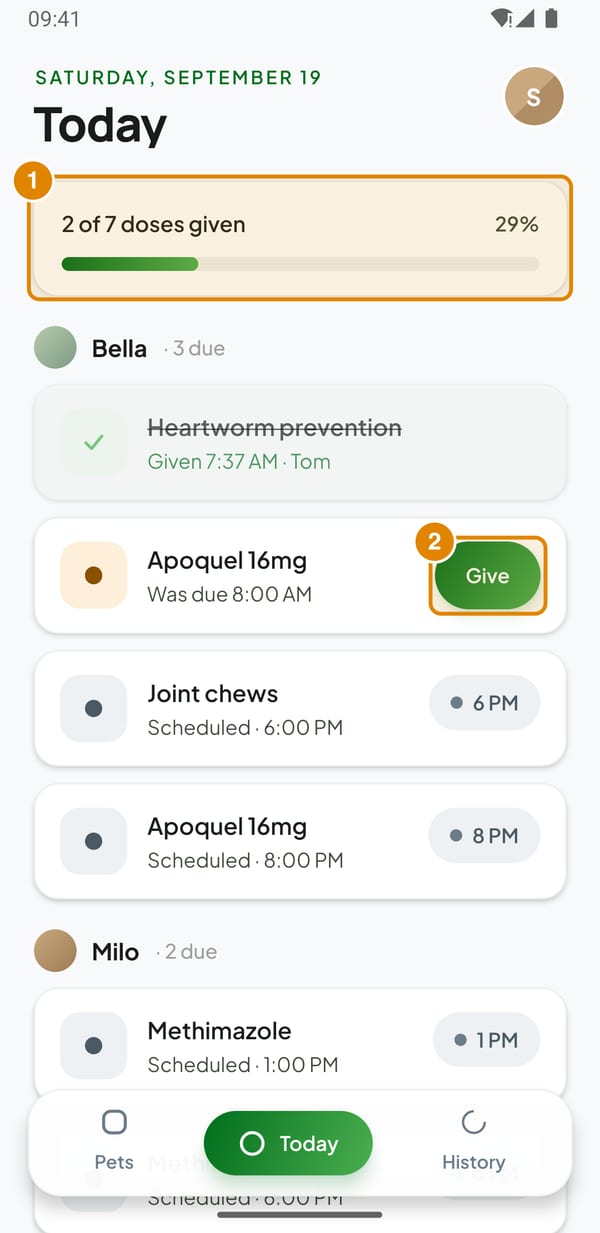
- Progress – How many of today’s doses are given
- Give – Log an overdue dose
3Or right from the pet card
On My Pets each card shows the next dose with a Mark given button. After logging you see who gave it and when, and what’s next.
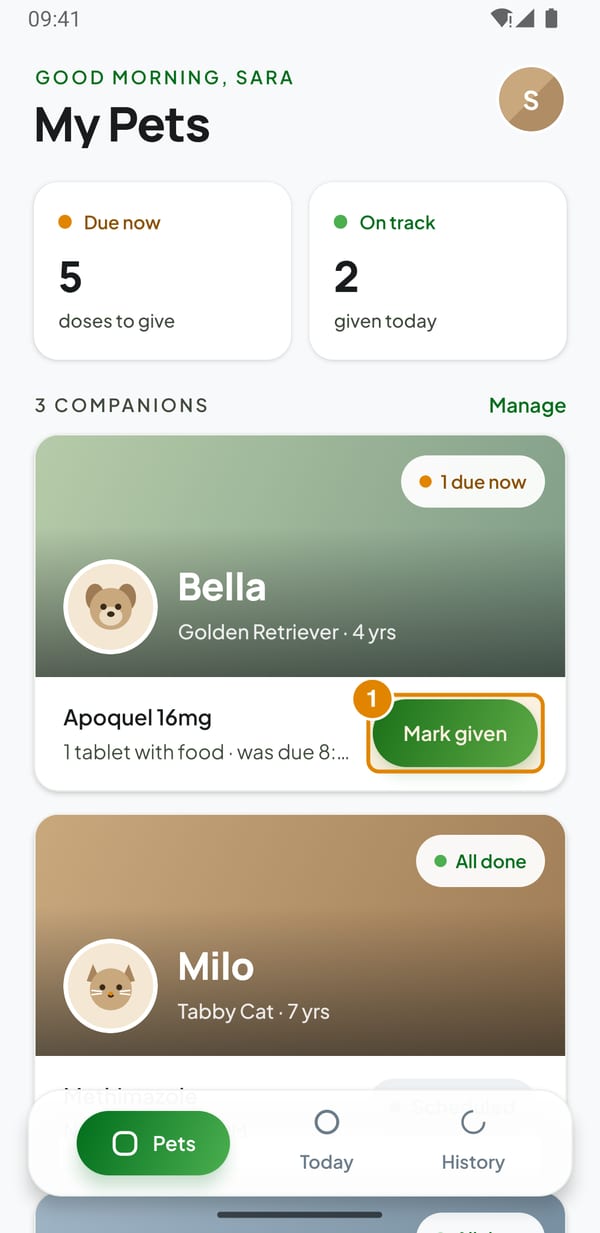
- Mark given – Log the dose right from the pet card
4Skip a dose with a reason
Tap the dose → Skip this dose. Pick a reason – Pet refused / spat it out, Vet said to pause, Ran out of medication or Other reason – optionally add a note, and tap Confirm skip.
Skipped doses stay in the history, so the vet sees an honest record.
5Look back in History
The History tab shows a month calendar. A green dot means all doses were given, an amber one that something was missed or late. Tap a day to see what was logged.
Adherence, on-time rate and streaks for the last four weeks are in Settings → Insights & streaks.
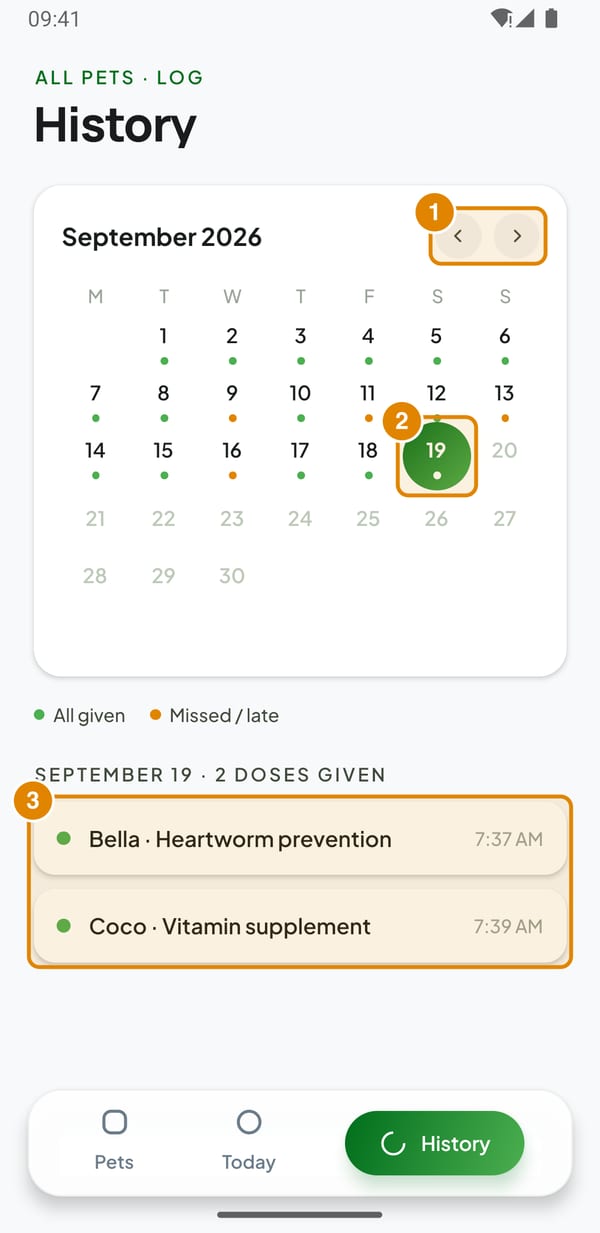
- ‹ › – Previous / next month
- Day – Show what was logged that day
- Day log – Who gave what, and when
6Keep reminders going
The phone can only hold a limited number of planned notifications, so PetCare plans doses about two weeks ahead and tops them up whenever you open the app. If you don’t open it for a long time, you get the notice Open PetCare to keep reminders going.