 PetCare Tracker
Vet, records and the emergency card
Everything the vet or a pet sitter needs, ready to share in a few taps.
1Save your vet
Settings → Vets → +. Fill in the Name and optionally the clinic, address, phone and opening hours, then Save vet.
In the vet’s profile you then have Call, Directions (opens your maps app) and Book. Link a vet to a pet with the Vet chip in the pet’s profile.
2Visits and appointments
In the pet’s profile tap Vet visits → +. Enter the Reason, Date, optionally the time, who saw the pet and Notes (“what the vet said, what to watch for”).
A date in the future is an appointment and appears as Upcoming; a past date goes to the history.
3Documents
Records in the pet’s profile keeps documents in four folders: Lab results, Scans & x-rays, Invoices and Certificates. Tap a folder and pick a photo or file.
Tap a document to open or share it, hold it to remove it.
4Send a PDF to the vet
In Records tap Export full history. PetCare builds a PDF with the profile, allergies, medications, recent doses, visits, vaccinations, weight history and observations, and opens the share sheet – send it by e-mail or any messenger.
Want less? The share icon in the pet’s profile lets you choose what to include and send it as a PDF or a short message.
5Emergency card
Emergency card in the pet’s profile shows serious allergies, daily medications and contacts. Your vet is listed automatically; add a 24h clinic or a neighbour with + Add and mark it as Urgent number.
Share this card sends it as a message – handy before a trip or for a pet sitter. Nothing is uploaded anywhere.
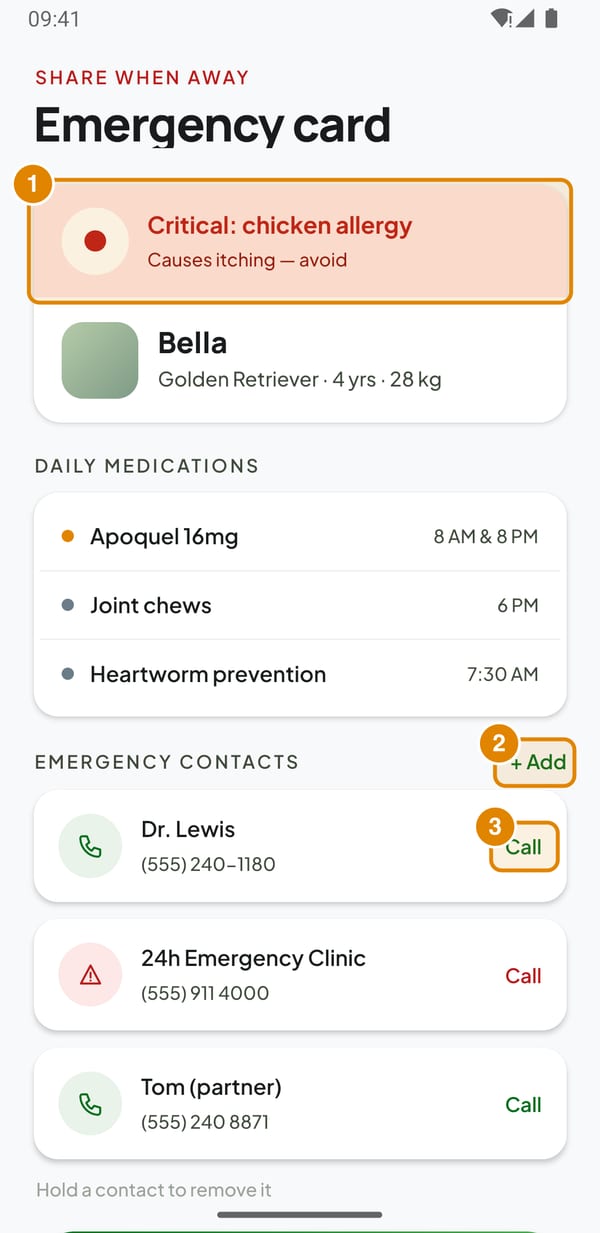
- Critical allergy – Shown when an allergy is marked serious
- + Add – Add an emergency contact
- Call – Calls the number straight away